
SAP Business One: When the Integration Service Keeps Stopping
Diagnosing, restarting, and monitoring the SAP Business One Integration Service: which stops are configured, which are not, and what this means for workflows.

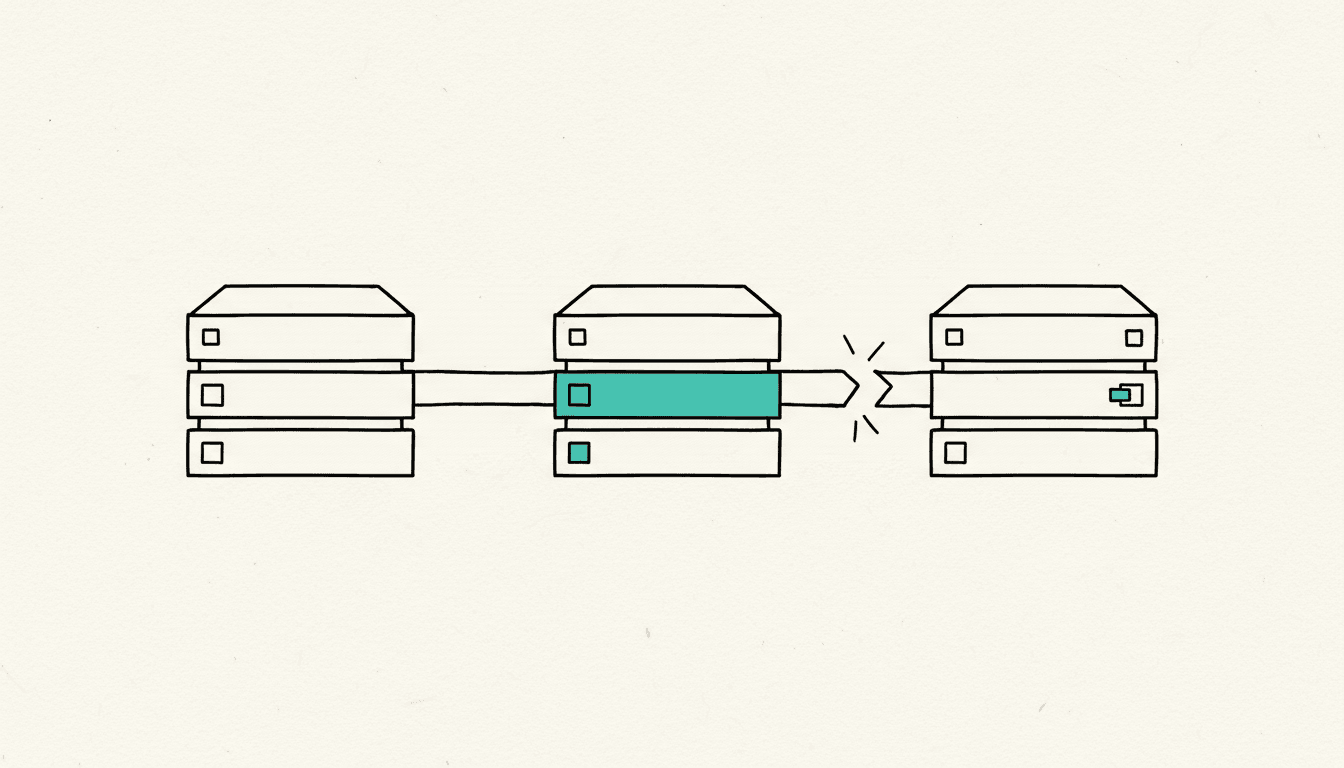
The SAP Business One Integration Service underpins dashboards, event forwarding, and a large share of all connections to Business One. When it fails, something rarely crashes loudly. Most of the time, nothing happens anymore, and this only becomes apparent when numbers are missing. The diagnostic path below is based on SAP documentation and on documented error patterns from the SAP Community, not on a customer case.
Which services are behind the Integration Service?
The Integration Service is not a single service but a chain of interdependent Windows services: the Tomcat-based Integration Service, the Event Sender, the System Landscape Directory, and at least two services around the DIProxy. Anyone who only looks at the service with the matching name is looking for the failure in the wrong place.
The SAP document DIProxy Configuration (Integration Framework for SAP Business One, SAP Global Roll-out, October 2018, author Bo Zhao) cleanly separates the two DIProxy services. The DI Proxy Service is “the main service which is listening on port 2099 by default for the DI-API calls”. Alongside it is the DI Proxy Service Monitor, according to SAP “the daemon service used to restart the DI Proxy automatically when the process stopped unexpectedly”. This second line is the most important sentence in the document: SAP ships a watchdog because unexpected crashes are anticipated.
That this infrastructure is part of the system is stated by SAP itself: “The integration framework for SAP Business One is a Web browser-based solution to design integration flows for exchanging data between different systems,” writes Miriam Rieger, Product and Topic Expert on SAP's Global Roll-out team, in the central B1if blog of the SAP Community (August 14, 2018, updated May 2020, around 96,100 views).
Why does the service stop repeatedly and not just once?
Repeated stops at Business One are often not a crash but a configured restart. The DIProxy comes with parameters that restart it on a schedule to limit potential memory leaks. Anyone who does not know this searches for days for an error that does not exist.
- MAXDIERRORS: 50 by default in on-premise installations, 200 in cloud installations. According to SAP, the value specifies “the count of DI-errors that may happen until the DIProxy will be restarted for the sake of potential memory leaking”.
- RESTARTPERIOD: 60 by default on-premise and 0 in the cloud. The value is the time in minutes until the next scheduled restart, for the same reason.
- MAXACCESES: 0 by default, meaning unlimited. SAP warns that shutting down the DIProxy can take “a very long time” when there are very many simultaneous accesses. This is exactly what the administrator sees as a service stuck on “stopping”.
For diagnosis, the frequency is what counts, not the stop itself. Briefly disappearing every hour matches expectations for on-premise default values. Disappearing every few minutes, however, does not.
This error pattern has been documented for years. A user described it succinctly in 2017: “sap business one integration service is stopping […] it repeats once in a while”. A thread from 2011 describes that on restart “the service returns an error and status is ‘stopping’ or ‘starting’” and that the only reliable way out is a server restart. Both posts remain without a published answer to this day (checked on August 3, 2026).
In what order should you diagnose the failure?
The order determines whether you find the cause or merely push the symptom aside. The restart belongs at the end, because it destroys the evidence.
- Check the service chain first. Check the Integration Service, Event Sender, and both DIProxy services individually. A main service that cyclically restarts while the monitor service is running is a different situation from a service that no longer comes back up.
- Turn up the log level deliberately. Controlled via DIProxylog.properties in the DIProxy directory, with logs in the log subfolder. The default is level SEVERE, 10,485,760 bytes per file, and three files. For troubleshooting, SAP recommends “.level=FINER” with “java.util.logging.FileHandler.count = 10”. At default settings, the cause has long since been overwritten after a few days.
- Standardize addressing. The most frequently cited trigger in the community for “cannot connect to SAP Business One integration service” is mixed addressing. An answer in the relevant thread puts it plainly: “Can you Check if you use the same hostname or ip address in SLD landscape directory and in integration service or event sender?” Either the hostname everywhere or the IP address everywhere.
- Cross-check ports. The DIProxy listens on 2099 by default. If it is on its own server, the port must be open. Multiple instances each need their own port in diproxyserver.properties.
- Restart only as a last step. After changing the system profile, the framework requires a restart of the Integration Service anyway.
What belongs in monitoring so you see the failure before the user does?
Monitoring is thin out of the box, which is why failures go unnoticed for a long time. According to Log Maintenance in Integration Framework (SAP Global Roll-Out, January 2019, author Nidhi Singh), the message log in the “Productive System” profile is not active by default. SAP recommends at most the lowest level, “Infoset,” for production systems.
The default value with the most far-reaching consequences is in error handling: for asynchronous transactions, both profiles apply “Retrial after 1 minute and stop processing of following messages”. A single faulty message thereby halts the entire queue. The service keeps running, but the integration stands still. This is the state in which service monitoring reports green while no data arrives at all.
- Monitor the queue, not the service status. The Queue Monitor is available by default. A queue that does not drain is the earliest honest signal.
- Detailed logs only temporarily. SAP puts it unambiguously: “We do not recommend enabling detailed logging for an extended period, because it generates large log files for each transaction.” Turn it on, reproduce the error, export it, turn it off.
- Evaluate database size. SAP provides a count query over BZSTIDXH and BZSTIDXP in the IFSERV schema. If the com.sap.b1i.system.xc.iodata record type dominates, this points to constantly repeating transactions, in other words to the stalled queue.
What does this mean for n8n, Power Automate, and RPA workflows?
An automation workflow must not rely on the Integration Service running. Three precautions cost little to implement if they are planned in from the start.
- Report errors instead of swallowing them. A branch that sends a message to a human in the event of an error is worth more than a log entry no one reads. At NordFlux, we build exactly this branch into every Business One connection, along with a regular test call against the interface.
- Retry with a wait time. A single attempt fails at every one-minute restart; a limited number of retries with a pause bridges it.
- Build idempotently. If a run breaks off in the middle of processing and starts again later, a second document must not be created. This requires a business key for matching.
Which access route is the right one is addressed in Connecting SAP Business One: Service Layer, OData, and RFC Middleware Compared. The licensing and tooling question behind it is covered in RPA or SAP Process Automation. You can find the framework for operations on our page about SAP Business One Consulting.
Frequently Asked Questions
Why does the SAP Business One Integration Service keep stopping?
Repeated stops are often configured and not a defect. According to SAP, the DIProxy restarts after a set time (RESTARTPERIOD, 60 minutes by default on-premise) or after a set number of DI errors (MAXDIERRORS, 50 by default on-premise and 200 in the cloud). First check the frequency of the stops against these two values.
Does the DIProxy restart automatically after a crash?
Yes, provided the second service is running. SAP installs the DI Proxy Service Monitor for this purpose, which according to the documentation is “the daemon service used to restart the DI Proxy automatically when the process stopped unexpectedly”. If this service is not running, a crashed DIProxy stays down permanently.
Where can I find the DIProxy log files?
In the log subfolder of the DIProxy directory, controlled via DIProxylog.properties. The default is level SEVERE, 10,485,760 bytes per file, and three files. For troubleshooting, SAP recommends level FINER with ten files, and resetting it afterward.
The service is running, but no data is arriving. What is the cause?
Usually the stalled queue. For asynchronous transactions, the default setting is “Retrial after 1 minute and stop processing of following messages”; a single faulty message blocks all subsequent ones. Look at the Queue Monitor and the failure section of the message log, not the services window.
Simon Glowik
Founder of NordFlux. Spent four years automating processes at enterprise scale at Dräger, and now brings that depth to the mid-market — pragmatic and with full data sovereignty.
Certifications
- Microsoft certified — PL-900 and AZ-900
- UiPath certified — Automation Developer Associate
- UiPath zertifiziert — Automation Developer Associate
Concrete questions about automation or AI?
In a free initial analysis we discuss your case directly. No strings attached.